Implementing Multi-Region Agents, MCP Servers, and LLMs
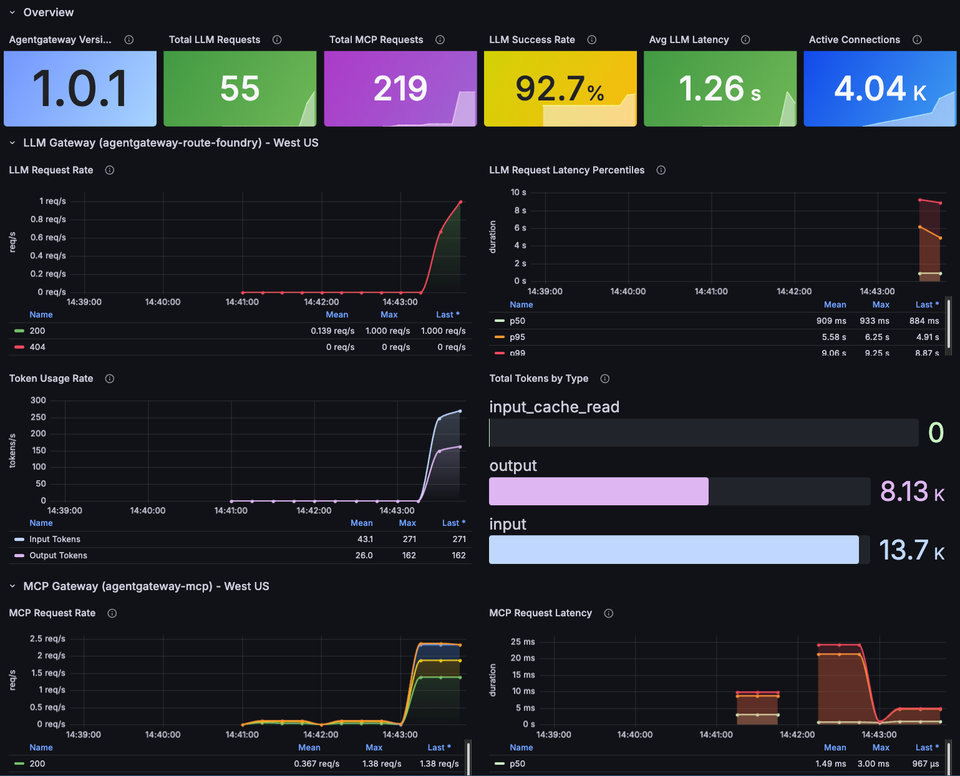
Having an Agent run, whether it's on your local system (e.g - Claude Code) or in a k8s cluster, is now table stakes. Everyone from engineers to people in other professions, like medicine and law, is using Agents. The important question to now solve is for everyone using an Agent, how performant is it, can it scale, and does it perform as expected? Because organizations care about high availability and fault tolerence, the second question that comes up is "What if an Agent is running in X, the Gateway is running in Y, and the LLM is running in Z? Will the Agent still perform as expected with various hops?".
In this blog post, you'll learn how to do multi-agent, multi-region deployments that span across not only multiple Agents, but LLM and MCP Gateways sitting in different regions.
Prerequisites
To follow along with this blog post in a hands-on fashion, you should have the following:
- Two Kubernetes clusters deployed via AKS. One in US East and one in US West 2 via AKS are used for this article, but you can use any managed k8s service and any two regions you'd like.
- kagent installed, which you can find here.
- agentgateway installed, which you can find here.
The Architecture Plan
First, let's go over what you'll be building out. On the left, you will see one Azure Kubernetes Services (AKS) cluster running in US East with two Agents running in it via kagent. They are pointing to the LLM Gateway and MCP Gateway, which are running in a second k8s cluster in US West 2. The LLM Gateway is using an LLM (GPT 5.4) that is deployed via Microsoft Foundry in South Central US.
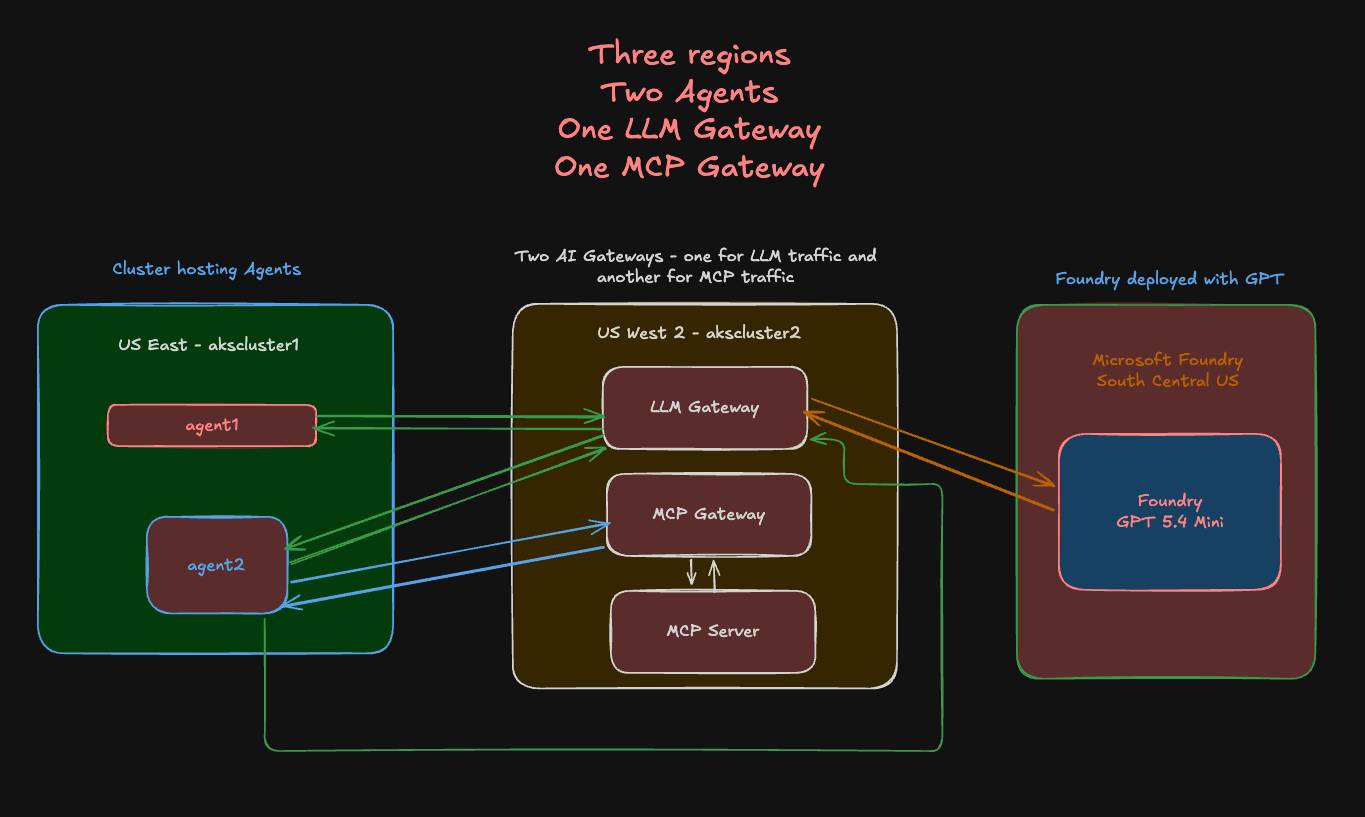
With this, you have a full blown multi-region architecture and you can add to this as well (multiple Gateways, various Agents, etc.). The overall goal is to test resiliency and performance to ensure that an Agent, regardless of where the LLM or MCP Server that it's hitting exists, will still perform as expected.
Kubernetes Clusters
With the architecture in mind, the next step is to see where all of this will run. As mentioned in the prerequisites section, you can choose whatever environment to run Kubernetes clusters you'd like. In this case, AKS is used.
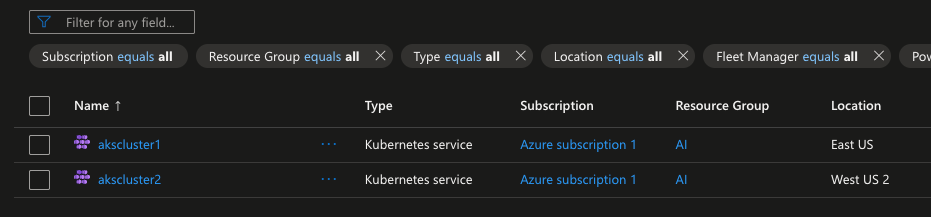
Even in this entire architecture as a whole, you can run it in a different cloud altogether. For example, this idea sprang on me because I did something very similar for a customer, except it was in AWS using EKS and Bedrock instead of in Azure using AKS and Microsoft Foundry.
What matters the most is ensuring that you're running on Kubernetes and the workflow is cross-region, as that's the real "test", which is to see how Agentic infrastructure works cross-region.
If you'd like some automated solutions to create managed k8s service clusters, you can look at the following Terraform configs:
Microsoft Foundry
The first step are the k8s clusters because you need a way to run Agents and Gateways. However, the Agents and Gateways won't be able to do much if they can't connect to an LLM. Because AKS is being used for this article, using Foundry made the most sense.
Microsoft Foundry is much like AWS Bedrock or Google Vertex - they're platforms for you to access whatever LLM you want (as long as it's supported) from one, central place. You'll see the primary Models like Claude and GPT, but you'll also see Models like deepseek and llama.
Let's now dive into how to create a Foundry service.
- Within the Azure portal, search for Foundry.
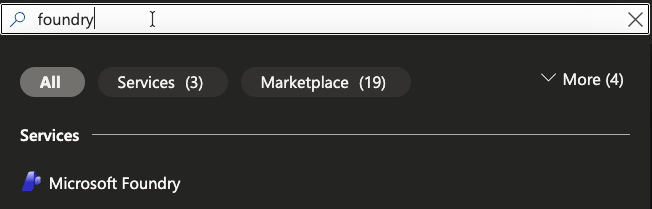
- Create a new Foundry resource. You can keep it basic, but the key thing is to ensure the region it's running in. Because we're deploying this environment to be multi-region, you'll want Foundry to be in a different region in comparison to your k8s clusters.
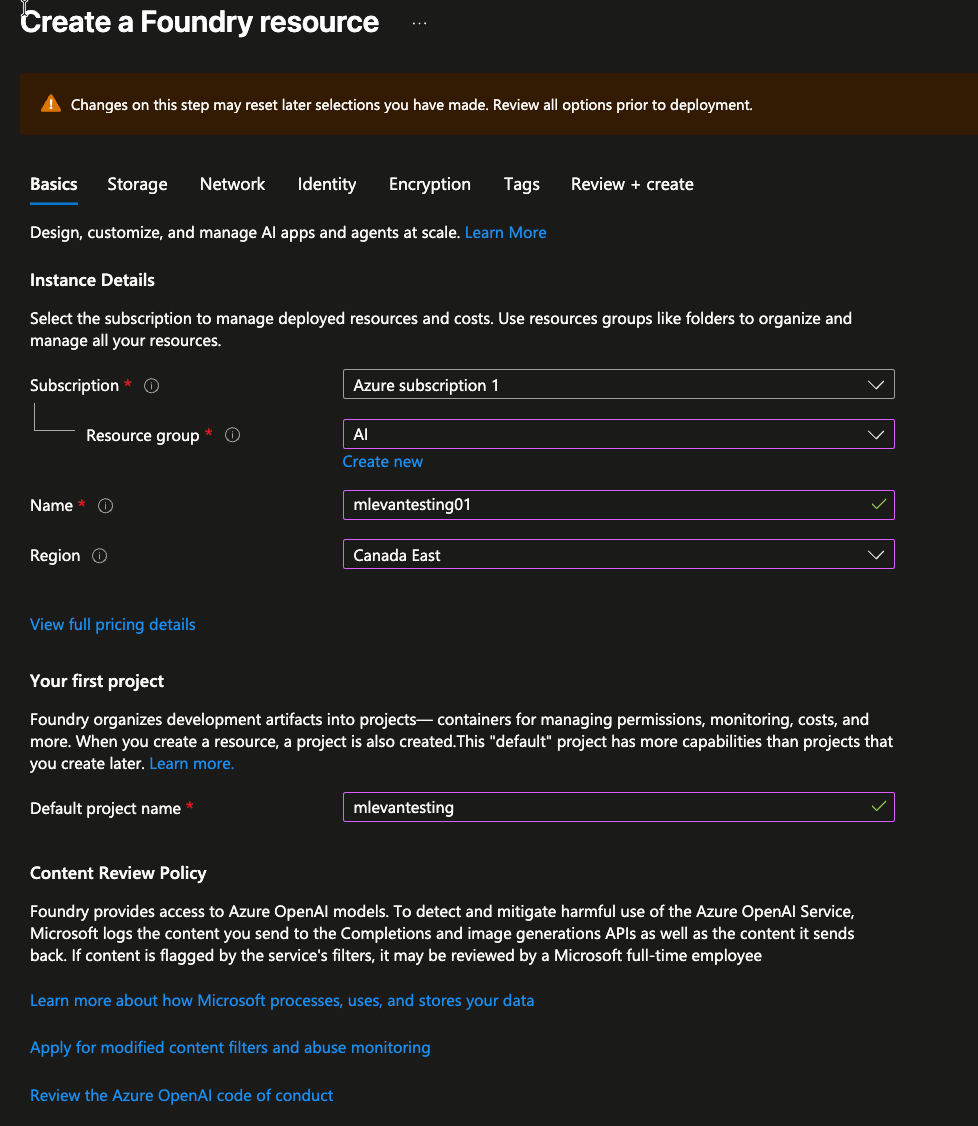
- Create the resource by clicking the blue Create button.
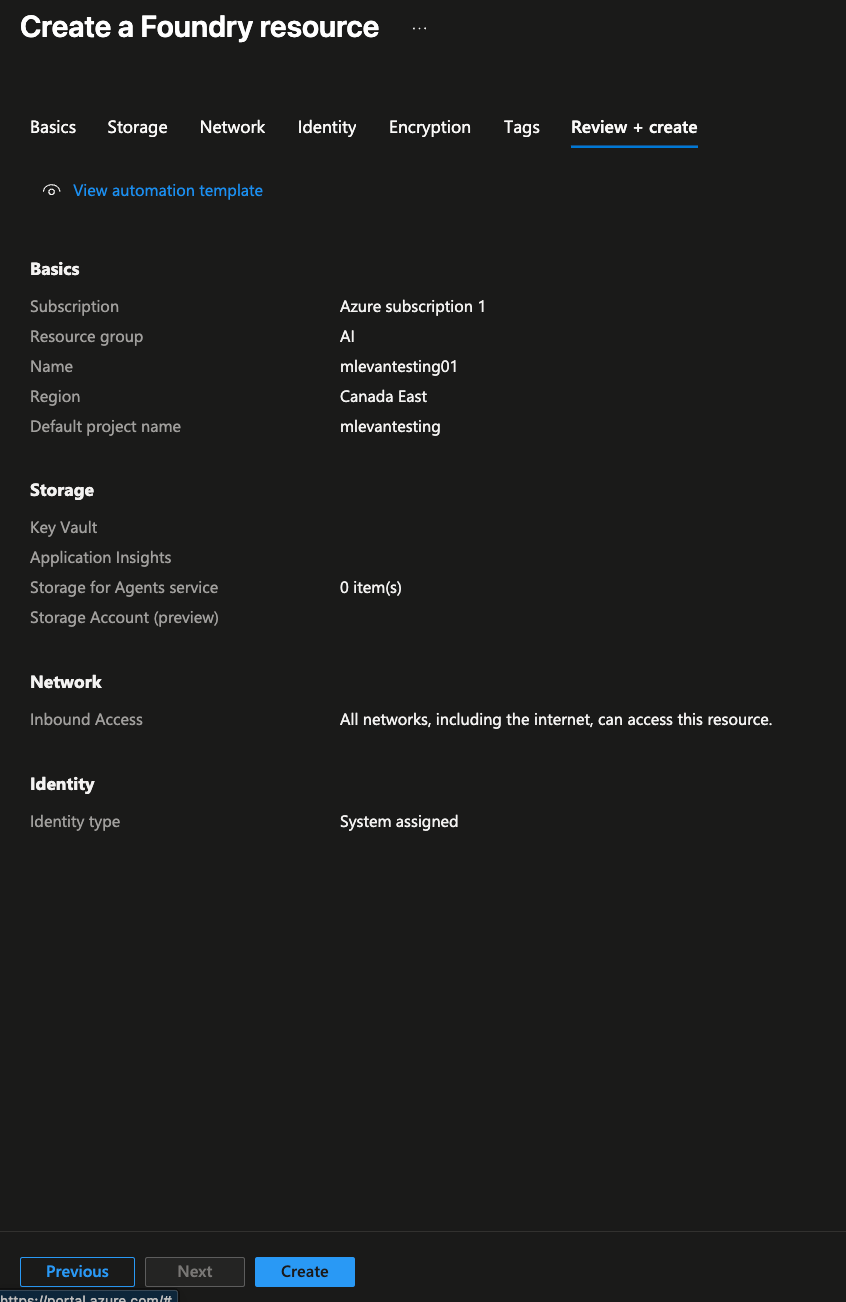
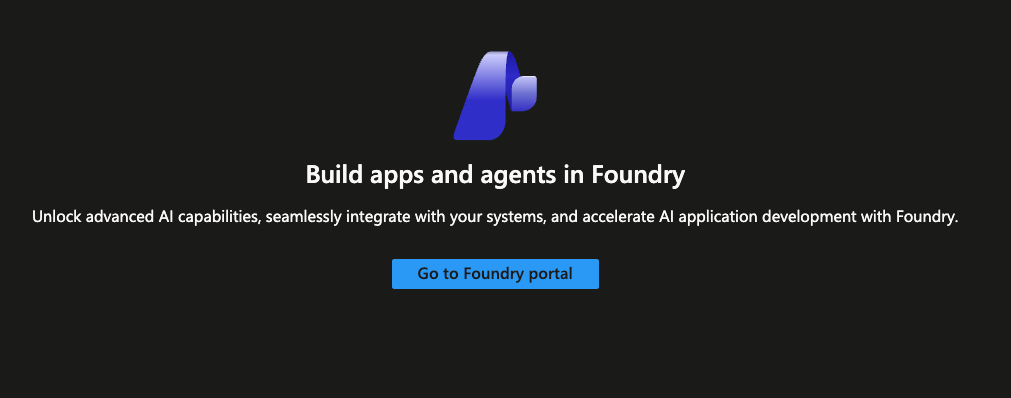
- Once the resource is created, you'll see a blue Go to Foundry portal button, which is where you can see the Foundry configuration for all things Models.
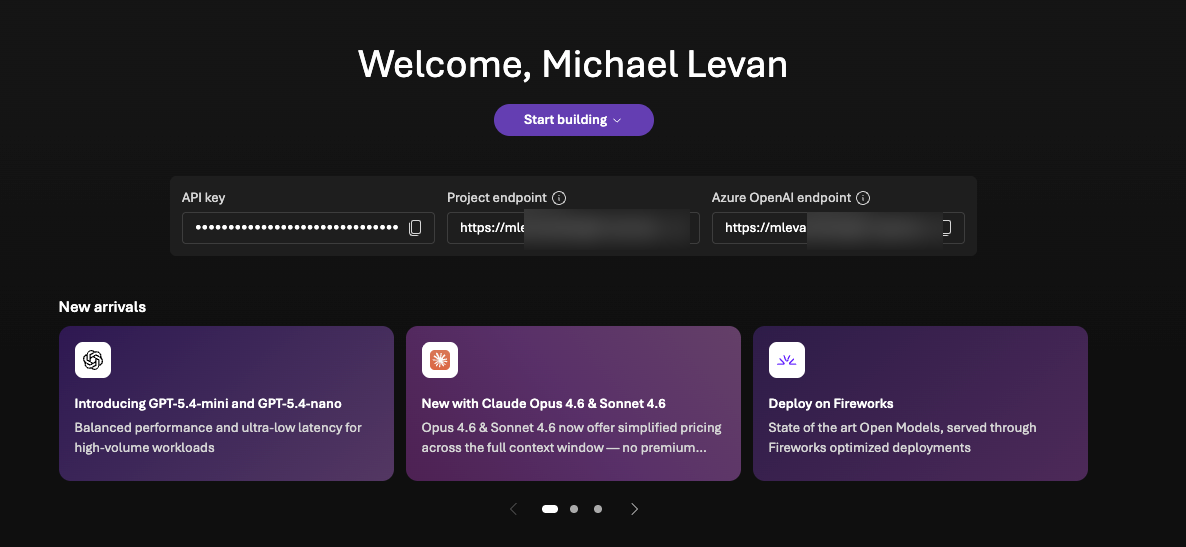
- Click the puruple Start building button and remember to know how to get back to this screeshot because you will need the project endpoint and the API key so agentgateway can route traffic to Foundry (setting up agentgateway will be in an upcoming section).
- Within Foundry, go to Models and search for
gpt.5-4-mini. Realistically, you can use any Model that you have access to, but the whole point of choosing aminiModel is to keep costs low.
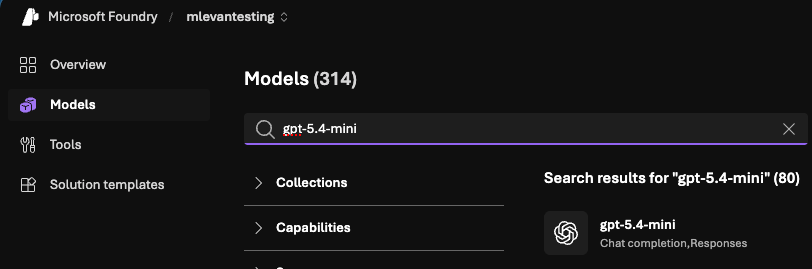
- With
gpt-5.4-miniselected, you can now Deploy the Model by clicking the purple Deploy button. When you click it, you'll see a "deploy with standard" option. Do that unless you have a specific reason not to.
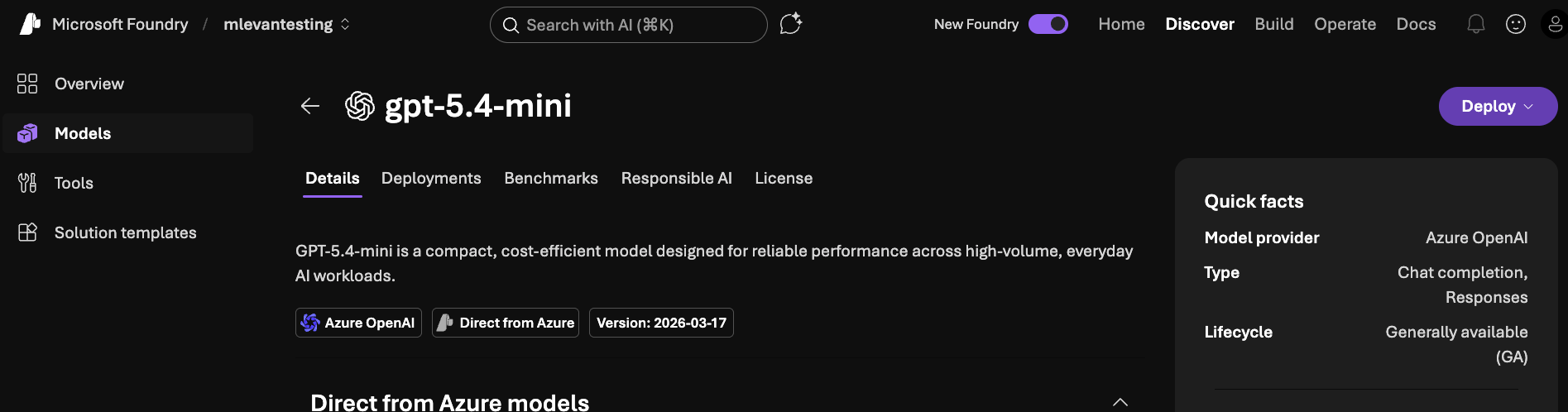
- Deploy GPT Mini to
South Central US.
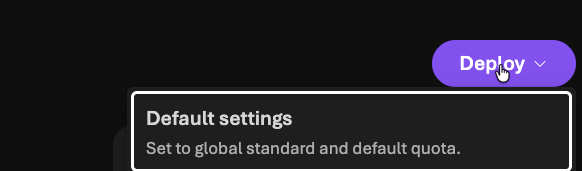
With your Model deployed in Foundry, it's time to start setting up the Gateways.
Gateway Deployments
An AI Gateway is what I like to call your "line of communication" or "tunnel" between an Agent and whatever LLM, MCP Server, or maybe even another Agent you're interacting with. Without an AI Gateway, all of your traffic is just running through the public internet and there is zero way to secure or observe it. You wouldn't even be able to see what Models are being accessed or token usage without it, which is a big "no-go" for many, if not all, organizations.
For the Gateway configurations, you'll want to be on akscluster2 (or whatever your second cluster is named).
The first step is to ensure that an AI Gateway is deployed and running successfully in Kubernetes. To complete this, you'll use agentgateway.
- Install the Kubernetes Gateway API CRDs, which is what agentgateway runs on top of it ensure an agnostic approach.
kubectl apply --server-side -f https://github.com/kubernetes-sigs/gateway-api/releases/download/v1.5.0/standard-install.yaml- Install the agentgateway CRDs.
helm upgrade -i --create-namespace \
  --namespace agentgateway-system \
--version v1.0.1 agentgateway-crds oci://cr.agentgateway.dev/charts/agentgateway-crds- Install agentgateway.
helm upgrade -i -n agentgateway-system agentgateway oci://cr.agentgateway.dev/charts/agentgateway \
--version v1.0.1
You should now be able to see the agentgateway control plane running in your cluster.

With that, let's dive into the individual configurations for both the LLM Gateway and the MCP Gateway.
LLM Gateway Deployment
- Create a new Gateway pointing to the
agentgatewayGatewayclass.
kubectl apply -f - <<EOF
apiVersion: gateway.networking.k8s.io/v1
kind: Gateway
metadata:
  name: agentgateway-route-foundry
  namespace: agentgateway-system
  labels:
    app: agentgateway-route-foundry
spec:
  gatewayClassName: agentgateway
  listeners:
    - name: http
      port: 8082
      protocol: HTTP
      allowedRoutes:
        namespaces:
          from: Same
EOF- Save your Foundry API key as an environment variable.
export AZURE_FOUNDRY_API_KEY=- Create a secret for your API key.
kubectl apply -f- <<EOF
apiVersion: v1
kind: Secret
metadata:
  name: azureopenai-secret
  namespace: agentgateway-system
  labels:
    app: agentgateway-route-foundry
type: Opaque
stringData:
  Authorization: $AZURE_FOUNDRY_API_KEY
EOF- Deploy an agentgateway backend, which points to your Foundry project and the mini GPT Model.
kubectl apply -f- <<EOF
apiVersion: agentgateway.dev/v1alpha1
kind: AgentgatewayBackend
metadata:
  labels:
    app: agentgateway-route-foundry
  name: azureopenaibackend
  namespace: agentgateway-system
spec:
  ai:
    provider:
      azureopenai:
        endpoint: YOUR_FOUNDRY_ENDPOINT.services.ai.azure.com
        deploymentName: gpt-5.4-mini
        apiVersion: 2025-01-01-preview
  policies:
    auth:
      secretRef:
        name: azureopenai-secret
EOF- Create a route that tells requests to call out to your gateway with the appropriate backend.
kubectl apply -f- <<EOF
apiVersion: gateway.networking.k8s.io/v1
kind: HTTPRoute
metadata:
  name: azureopenai
  namespace: agentgateway-system
  labels:
    app: agentgateway-route-foundry
spec:
  parentRefs:
    - name: agentgateway-route-foundry
      namespace: agentgateway-system
  rules:
  - matches:
    - path:
        type: PathPrefix
        value: /azureopenai
    filters:
    - type: URLRewrite
      urlRewrite:
        path:
          type: ReplaceFullPath
          replaceFullPath: /v1/chat/completions
    backendRefs:
    - name: azureopenaibackend
      namespace: agentgateway-system
      group: agentgateway.dev
      kind: AgentgatewayBackend
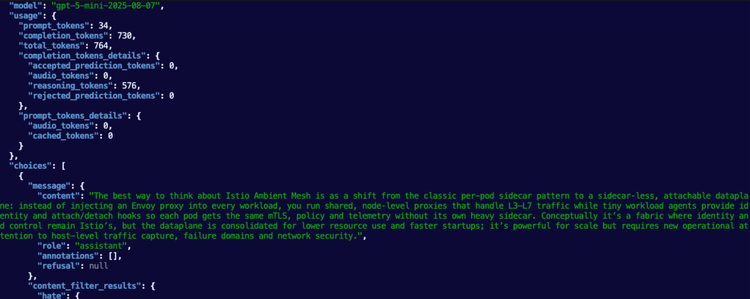
EOF- You can now test the Gateway to confirm it works as expected before adding an Agent in front of it.
export INGRESS_GW_ADDRESS=$(kubectl get svc -n agentgateway-system agentgateway-route-foundry -o jsonpath="{.status.loadBalancer.ingress[0]['hostname','ip']}")
echo $INGRESS_GW_ADDRESS
curl "$INGRESS_GW_ADDRESS:8082/azureopenai" -v -H content-type:application/json -d '{
"messages": [
{
"role": "system",
"content": "You are a skilled cloud-native network engineer."
},
{
"role": "user",
"content": "Write me a paragraph containing the best way to think about Istio Ambient Mesh"
}
]
}' | jqYou'll see an output similar to the one below.
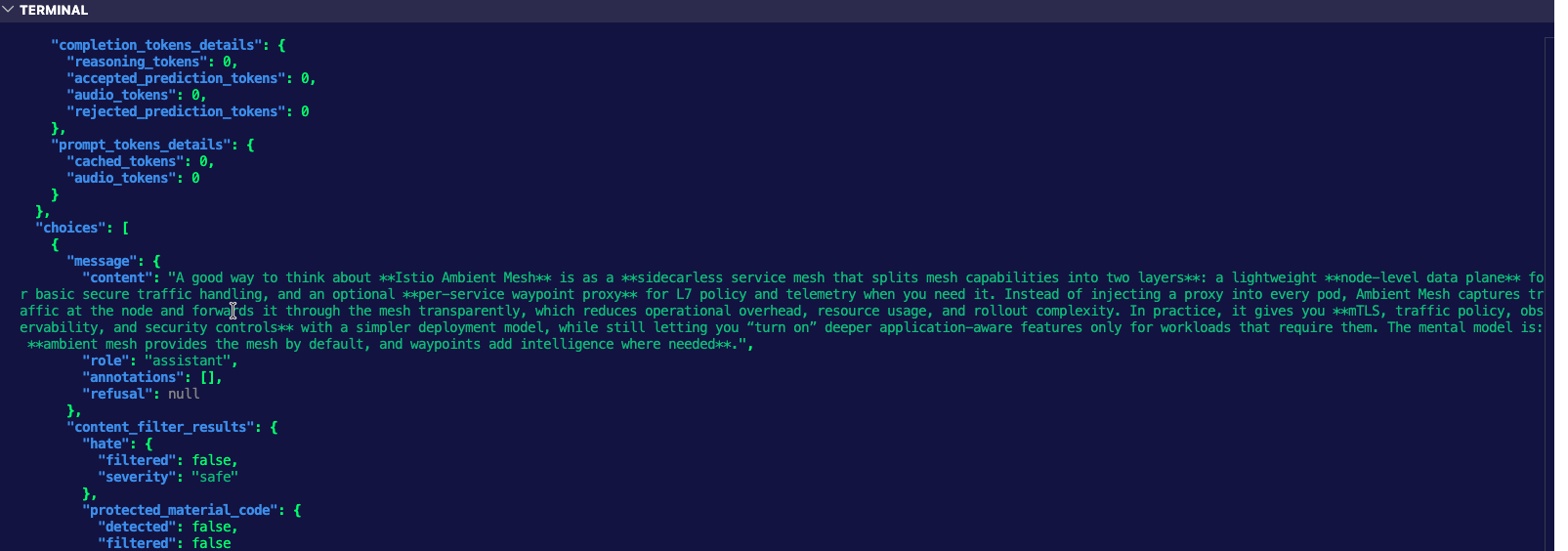
And you can also look at the agentgateway Pod logs.
2026-03-28T17:28:10.940640Z info request gateway=agentgateway-system/agentgateway-route-foundry listener=http route=agentgateway-system/azureopenai endpoint=michaellevan-5616-resource.services.ai.azure.com:443 src.addr=10.224.0.4:14204 http.method=POST http.host=20.99.229.96 http.path=/azureopenai http.version=HTTP/1.1 http.status=200 protocol=llm gen_ai.operation.name=chat gen_ai.provider.name=azure.openai gen_ai.request.model=gpt-5.4-mini gen_ai.response.model=gpt-5.4-mini-2026-03-17 gen_ai.usage.input_tokens=34 gen_ai.usage.output_tokens=173 duration=1704msMCP Server and Gateway Deployment
- Deploy an MCP Server. In this case, this an MCP Server that'll run on k8s. It has two tools - add and multiply.
kubectl apply -f - <<EOF
apiVersion: v1
kind: ConfigMap
metadata:
  name: mcp-math-script
  namespace: default
data:
  server.py: |
    import uvicorn
    from mcp.server.fastmcp import FastMCP
    from starlette.applications import Starlette
    from starlette.routing import Route
    from starlette.requests import Request
    from starlette.responses import JSONResponse, Response

    mcp = FastMCP("Math-Service")

    @mcp.tool()
    def add(a: int, b: int) -> int:
        """Add two numbers together"""
        return a + b

    @mcp.tool()
    def multiply(a: int, b: int) -> int:
        """Multiply two numbers together"""
        return a * b

    async def handle_mcp(request: Request):
        try:
            data = await request.json()
            method = data.get("method")
            msg_id = data.get("id")
            result = None

            if method == "initialize":
                result = {
                    "protocolVersion": "2024-11-05",
                    "capabilities": {"tools": {}},
                    "serverInfo": {"name": "Math-Service", "version": "1.0"}
                }

            elif method == "notifications/initialized":
                # Notifications are fire-and-forget, return empty 202 response
                return Response(status_code=202)

            elif method == "tools/list":
                tools_list = await mcp.list_tools()
                result = {
                    "tools": [
                        {
                            "name": t.name,
                            "description": t.description,
                            "inputSchema": t.inputSchema
                        } for t in tools_list
                    ]
                }

            elif method == "tools/call":
                params = data.get("params", {})
                name = params.get("name")
                args = params.get("arguments", {})

                # Call the tool
                tool_result = await mcp.call_tool(name, args)

                # --- FIX: Serialize the content objects manually ---
                serialized_content = []
                for content in tool_result:
                    if hasattr(content, "type") and content.type == "text":
                        serialized_content.append({"type": "text", "text": content.text})
                    elif hasattr(content, "type") and content.type == "image":
                         serialized_content.append({
                             "type": "image",
                             "data": content.data,
                             "mimeType": content.mimeType
                         })
                    else:
                        # Fallback: wrap as TextContent so MCP clients can parse it
                        serialized_content.append({"type": "text", "text": str(content)})

                result = {
                    "content": serialized_content,
                    "isError": False
                }

            elif method == "ping":
                result = {}

            else:
                return JSONResponse(
                    {"jsonrpc": "2.0", "id": msg_id, "error": {"code": -32601, "message": "Method not found"}},
                    status_code=404
                )

            return JSONResponse({"jsonrpc": "2.0", "id": msg_id, "result": result})

        except Exception as e:
            # Print error to logs for debugging
            import traceback
            traceback.print_exc()
            return JSONResponse(
                {"jsonrpc": "2.0", "id": None, "error": {"code": -32603, "message": str(e)}},
                status_code=500
            )

    app = Starlette(routes=[
        Route("/mcp", handle_mcp, methods=["POST"]),
        Route("/", lambda r: JSONResponse({"status": "ok"}), methods=["GET"])
    ])

    if __name__ == "__main__":
        print("Starting Fixed Math Server on port 8000...")
        uvicorn.run(app, host="0.0.0.0", port=8000)
---
apiVersion: apps/v1
kind: Deployment
metadata:
  name: mcp-math-server
  namespace: default
spec:
  replicas: 1
  selector:
    matchLabels:
      app: mcp-math-server
  template:
    metadata:
      labels:
        app: mcp-math-server
    spec:
      containers:
      - name: math
        image: python:3.11-slim
        command: ["/bin/sh", "-c"]
        args:
        - |
          pip install "mcp[cli]" uvicorn starlette &&
          python /app/server.py
        ports:
        - containerPort: 8000
        volumeMounts:
        - name: script-volume
          mountPath: /app
        readinessProbe:
          httpGet:
            path: /
            port: 8000
          initialDelaySeconds: 5
          periodSeconds: 5
      volumes:
      - name: script-volume
        configMap:
          name: mcp-math-script
---
apiVersion: v1
kind: Service
metadata:
  name: mcp-math-server
  namespace: default
spec:
  selector:
    app: mcp-math-server
  ports:
  - port: 80
    targetPort: 8000
EOF
```- Create a Gateway that will act as your MCP Gateway.
kubectl apply -f - <<EOF
apiVersion: gateway.networking.k8s.io/v1
kind: Gateway
metadata:
  name: agentgateway-mcp
  namespace: agentgateway-system
spec:
  gatewayClassName: enterprise-agentgateway
  listeners:
  - name: http
    port: 8080
    protocol: HTTP
    allowedRoutes:
      namespaces:
        from: Same
EOF- Implement an agentgateway backend that points to the MCP Server k8s service running in your cluster.
kubectl apply -f - <<EOF
apiVersion: agentgateway.dev/v1alpha1
kind: AgentgatewayBackend
metadata:
  name: demo-mcp-server
  namespace: agentgateway-system
spec:
  mcp:
    targets:
      - name: demo-mcp-server
        static:
          host: mcp-math-server.default.svc.cluster.local
          port: 80
          path: /mcp
          protocol: StreamableHTTP
EOF- Create a route for your gateway so traffic can reach your MCP Server.
kubectl apply -f - <<EOF
apiVersion: gateway.networking.k8s.io/v1
kind: HTTPRoute
metadata:
  name: mcp-route
  namespace: agentgateway-system
spec:
  parentRefs:
  - name: agentgateway-mcp
  rules:
  - backendRefs:
    - name: demo-mcp-server
      namespace: agentgateway-system
      group: agentgateway.dev
      kind: AgentgatewayBackend
EOF- Retrieve the IP of the MCP Server.
export GATEWAY_IP=$(kubectl get svc agentgateway-mcp -n agentgateway-system -o jsonpath='{.status.loadBalancer.ingress[0].ip}')
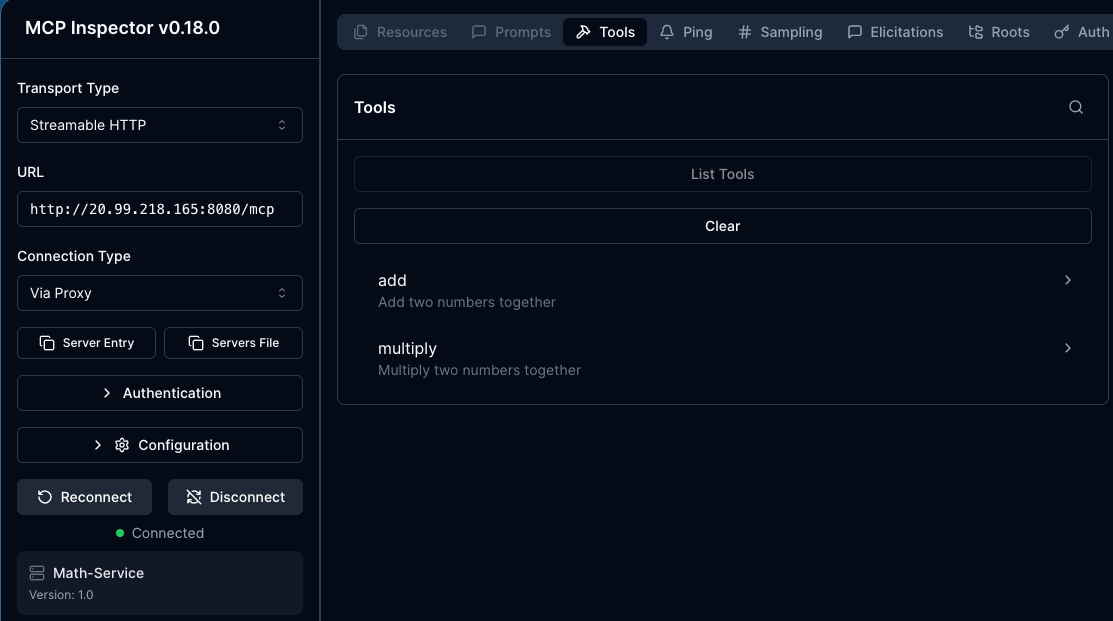
echo $GATEWAY_IP- Open MCP Inspector to ensure that the MCP Server is accessible prior to putting an Agent in front of it.
npx modelcontextprotocol/inspector#0.18.0You can now see that the MCP Server is working and accessible via your MCP Gateway.
Agent Deployments
With the Gateways configured, it's now time to go to akscluster1 (or whatever your first cluster is named) and implement your Agentic framework/runtime. For the purposes of this blog post, kagent will be used. The first step is to install kagent, and the next few steps are to create and deploy your Agents.
helm upgrade --install kagent-crds oci://ghcr.io/kagent-dev/kagent/helm/kagent-crds \
    --version 0.8.0-beta9 \
    --namespace kagent \
--create-namespace- You won't need an LLM provider API key because within the
ModelConfigsettings you'll be setting up in the Agent deployment sections, it'll point to Microsoft agentgateway, which is pointing to Microsoft Foundry, where your LLM is. However, you still need to pass in the mandatory parameterproviders.anthropic.apiKey, so you can just export a dummy key.
export ANTHROPIC_API_KEY="testing123"- Install kagent.
helm upgrade --install kagent oci://ghcr.io/kagent-dev/kagent/helm/kagent \
    --namespace kagent \
    --version 0.8.0-beta9 \
    --set providers.default=anthropic \
    --set providers.anthropic.apiKey=$ANTHROPIC_API_KEY \
    --set ui.service.type=LoadBalancer
Direct LLM Access Agent
The first Agent will connect directly to Foundry via the agentgateway configurations you deployed in the previous section.
- Put your Foundry API key into an environment variable.
export AZURE_FOUNDRY_API_KEY=- Create a new secret with the Foundry API key.
kubectl apply -f- <<EOF
apiVersion: v1
kind: Secret
metadata:
  name: azureopenai-secret
  namespace: kagent
  labels:
    app: agentgateway-route-foundry
type: Opaque
stringData:
  Authorization: $AZURE_FOUNDRY_API_KEY
EOF- Create a
ModelConfigto . This is pointing your LLM Gateway (which is agentgateway) and agentgatewaysAgentgatewayBackendis using Microsoft Foundry (in South Central US) as a static host.
kubectl apply -f - <<EOF
apiVersion: kagent.dev/v1alpha2
kind: ModelConfig
metadata:
  name: llm-foundry-model-config
  namespace: kagent
spec:
  apiKeySecret: azureopenai-secret
  apiKeySecretKey: Authorization
  model: gpt-5.4-mini
  provider: OpenAI
  openAI:
    baseUrl: http://20.99.229.96:8082/azureopenai
EOF- Create an Agent that uses the
ModelConfigabove for calling out to Foundry via Agentgateway within South Central US.
kubectl apply -f - <<EOF
apiVersion: kagent.dev/v1alpha2
kind: Agent
metadata:
  name: kagent-direct-test
  namespace: kagent
spec:
  description: This agent can use a single tool to expand it's Kubernetes knowledge for troubleshooting and deployment
  type: Declarative
  declarative:
    modelConfig: llm-foundry-model-config
    systemMessage: |-
      You're a friendly and helpful agent that uses the Kubernetes tool to help troubleshooting and deploy environments
EOF- Ensure the Agent works.
kagent invoke --agent kagent-direct-test --task "What can you do" -n kagentYou'll see an output like the one below:
{"artifacts":[{"artifactId":"389bd549-0b6a-4c80-be12-2132873ac1f3","parts":[{"kind":"text","text":"I can help you troubleshoot and deploy Kubernetes environments.\n\nTypical things I can do:\n- Diagnose pod, deployment, service, ingress, and job issues\n- Help interpret `kubectl` output and error messages\n- Suggest fixes for crash loops, image pull errors, pending pods, and readiness/liveness probe failures\n- Help plan or review manifests for deployments, services, configmaps, secrets, PVCs, ingress, etc.\n- Assist with rollout, scaling, and namespace-related tasks\n- Walk through production-safe debugging steps\n\nIf you want, send me:MCP Connection Agent
- Create a
RemotMCPServerand use the URL of the gateway (this would be a hostname or ALB public IP) in step one within the object.
kubectl apply -f - <<EOF
apiVersion: kagent.dev/v1alpha2
kind: RemoteMCPServer
metadata:
  name: math-server
  namespace: kagent
spec:
  description: Math server on aks2 in us west
  url: http://20.99.218.165:8080/mcp
  protocol: STREAMABLE_HTTP
  timeout: 5s
  terminateOnClose: true
EOF- Create an Agent. This Agent hits Foundry via your LLM Gateway (Foundry in South Central US) and the
math-serverMCP Server via the MCP Gateway, both of which live in the AKS cluster running inUS West. This shows your Agent going through not only one, but two separate regions as the Agent is deployed inUS East.
kubectl apply -f - <<EOF
apiVersion: kagent.dev/v1alpha2
kind: Agent
metadata:
  name: test-math
  namespace: kagent
spec:
  description: This agent can use a single tool to expand it's Kubernetes knowledge for troubleshooting and deployment
  type: Declarative
  declarative:
    modelConfig: llm-foundry-model-config
    systemMessage: |-
      You're a friendly math wiz
    tools:
    - type: McpServer
      mcpServer:
        name: math-server
        kind: RemoteMCPServer
        toolNames:
        - add
        - multiply
EOF- Test the Agent to ensure that it's hitting the MCP Server.
kagent invoke --agent test-math --task "What MCP Servers and tools do you have access to?" -n kagentYou should see an output similar to the below.
{"artifacts":[{"artifactId":"97bb6d1f-6151-4ebd-8237-827e5a17b6db","parts":[{"kind":"text","text":"I have access to the following tools:\n\n- `functions.add(a, b)` — add two numbers\n- `functions.multiply(a, b)` — multiply two numbers\n-Setting Up Observability
With the Gateways and Agents deployed, let's set up monitoring and observability so we can actually see the Agents in action. To do this, we can continue down the open-source path and use the kube-prometheus stack.
For this to work, kube-prometheus should be installed on akscluster2 (in the monitoring namespace) because that's where the gateways are running, which means that's where all exposed routing data exists.
Installation
- Add the proper kube-prometheus helm chart and ensure it's updated.
helm repo add prometheus-community https://prometheus-community.github.io/helm-charts

helm repo update- Install kube-prometheus.
helm upgrade --install kube-prometheus-stack prometheus-community/kube-prometheus-stack \
  --namespace monitoring \
  --create-namespace \
  --set prometheus.prometheusSpec.serviceMonitorSelectorNilUsesHelmValues=false \
  --set prometheus.prometheusSpec.podMonitorSelectorNilUsesHelmValues=false \
  --set prometheus.prometheusSpec.ruleSelectorNilUsesHelmValues=false \
--set prometheus.prometheusSpec.retention=7d- Create a
PodMonitorto scrape metrics from the agengateway Pods.
apiVersion: monitoring.coreos.com/v1
kind: PodMonitor
metadata:
  name: agentgateway
  namespace: agentgateway-system
  labels:
    app: agentgateway
spec:
  selector:
    matchExpressions:
      - key: app.kubernetes.io/name
        operator: In
        values:
          - agentgateway-route-foundry
          - agentgateway-mcp
          - agentgateway
  podMetricsEndpoints:
    - port: metrics
      path: /metrics
      interval: 15s
- Retrieve the Grafana password so you can log into the UI.
kubectl get secret --namespace monitoring -l app.kubernetes.io/component=admin-secret -o jsonpath="{.items[0].data.admin-password}" | base64 --decode ; echo- Access the Grafana UI by port-forwarding the Grafana service.
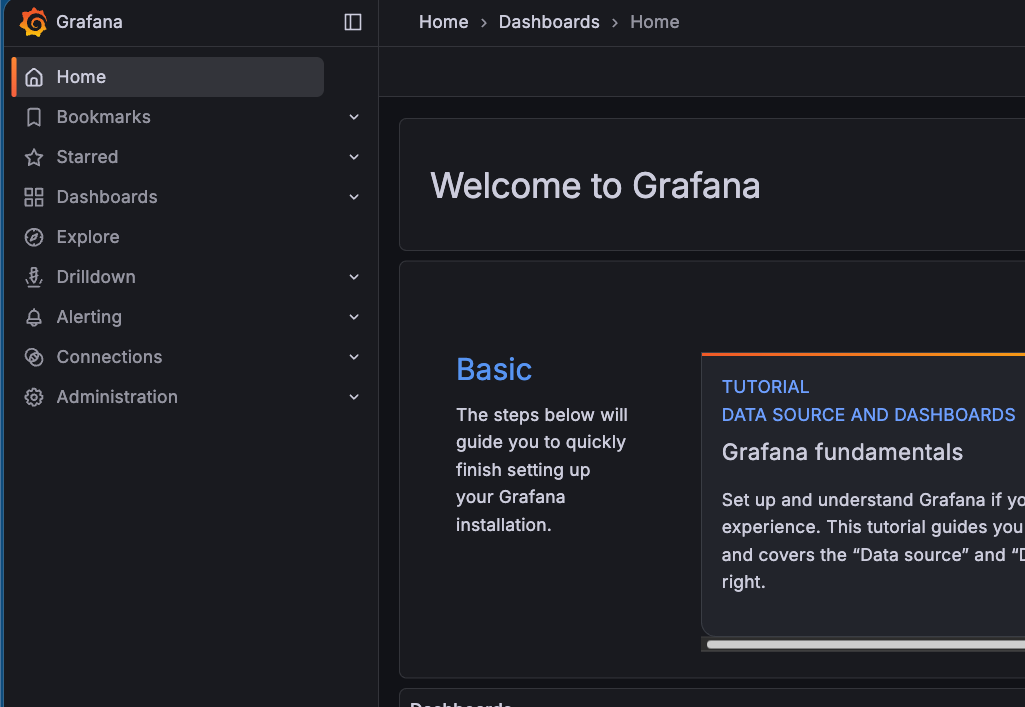
kubectl port-forward svc/kube-prometheus-stack-grafana -n monitoring 8085:80You'll see Grafana is now deployed.
Dashboard
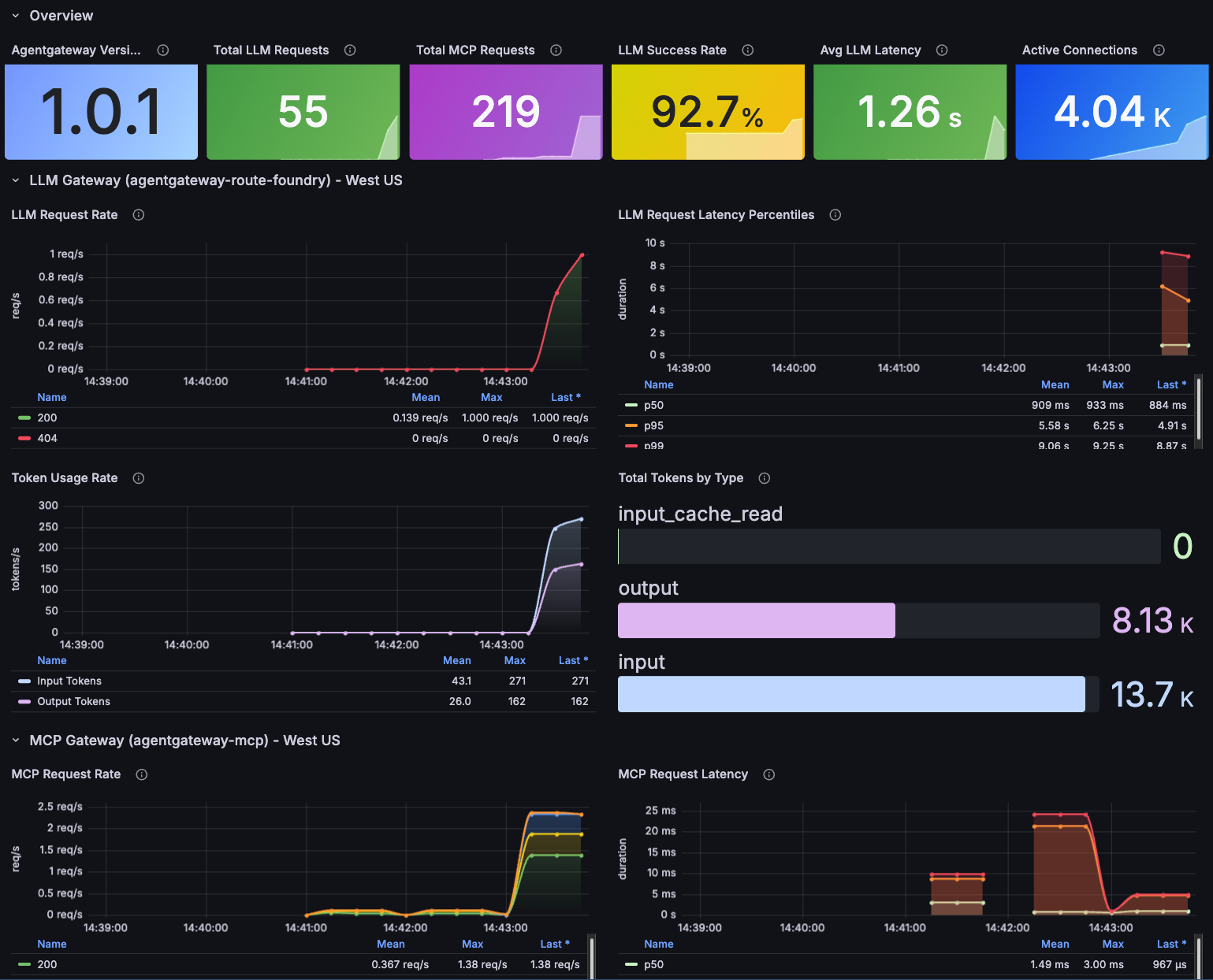
With kube-prometheus installed, it's time to visualize the multi-region traffic. We need a dashboard showing what you've built. The dashboard will pull exposed metrics/data from both gateways.
- In Grafana, go to Dashboards -> New Import.
- Import the dashboard here.
Send some requests through your Agents and you should see an output similar to the below.
  10x kagent-direct-test (LLM gateway -> Foundry):
  for i in $(seq 1 10); do
    kagent invoke --agent kagent-direct-test --task "Explain Kubernetes concept number $i: pods, services, deployments, configmaps, secrets, ingress, PVCs, namespaces, RBAC, network policies" -n
  kagent &
  done
  wait
  10x test-math (LLM gateway -> Foundry + MCP gateway -> math server):
  for i in $(seq 1 10); do
    kagent invoke --agent test-math --task "Calculate $((RANDOM % 1000)) + $((RANDOM % 1000)) using the add tool, then multiply $((RANDOM % 100)) * $((RANDOM % 100)) using the multiply tool" -n
  kagent &
  done
  wait

  15x direct curl to LLM gateway:
  export INGRESS_GW_ADDRESS=
  for i in $(seq 1 15); do
    curl -s "$INGRESS_GW_ADDRESS:8082/azureopenai" -H content-type:application/json -d "{
      \"messages\": [
        {\"role\": \"system\", \"content\": \"You are a helpful assistant.\"},
        {\"role\": \"user\", \"content\": \"In one sentence, explain concept $i from this list: containers, microservices, service mesh, observability, GitOps, CI/CD, IaC, zero trust, eBPF,
  sidecars, gRPC, API gateways, event-driven architecture, serverless, edge computing\"}
      ]
    }" -o /dev/null -w "Request $i: HTTP %{http_code} in %{time_total}s\n" &
  done
  wait

Comments ()