Many Actors, One Worker: Running Multi-Actor Workflows In Agent Substrate
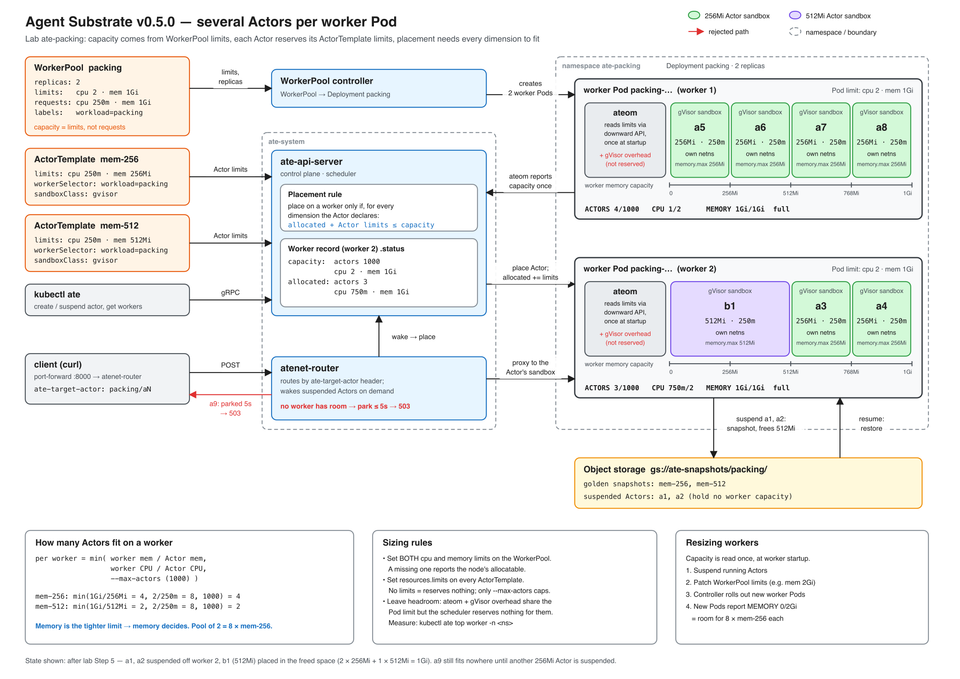
Starting with Agent Substrate v0.5.0 (latest build at the time of writing this blog post on 10/17/2026), you can now run multiple Actors within one Worker (Pod). Before this release, only one Actor could run/be scheduled at a time on a Worker.
This is a phenomenal edition as it showcases an even better story on the efficiency of running Agents within Substrate, separating more and more from the "One Agent, one Pod" model.
In this blog post, you'll learn how to set up your Worker to ensure that it has the proper resources to run multiple Actors, along with testing out the flow to see multi-Actor runs on a single Worker.
Prerequisites
To follow along with this blog post in a hands-on fashion, you will need:
- A Kubernetes cluster (local is fine)
- If you go with a managed service like AKS or EKS, you will need k8s v1.37 as it requires the PodCertificate API and AKS/EKS doesn't allow you to modify the Control Plane. Using GKE or a local cluster like Kind/Minikube allows you to modify the Control Plane to enable the PodCertificate API.
- Agent Substrate installed. You can learn how to do that here.
- The
0.5.0version ofkubectl-ateis installed.
cd substrate
git checkout v0.5.0
go install ./cmd/kubectl-ate
The Architecture
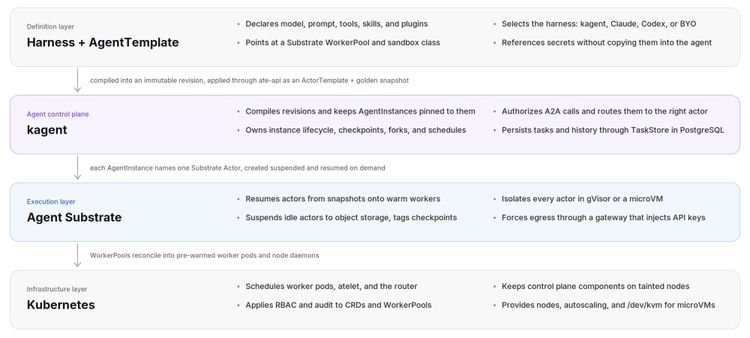
To fully understand what and how you're going to deploy, let's dive into the architecture to get a good idea of what will run and how it will run.
What you see above are many of the Agent Substrate components that are needed for the system itself to run, and you can learn what those primitives are here. For the purposes of this blog post, let's focus on the WorkerPool, ActorTemplate, and Worker.
The WorkerPool is how many Workers (Pods) are available within the pool. You can think of it like a standard k8s cluster - when deploying a cluster, you have Worker Nodes, and the Worker Nodes resources (CPU, memory, etc.) are "pooled" for the entire cluster to be able to use, so Pods can be scheduled and run with the necessary resources. Same concept.
The ActorTemplate is almost like the "golden image" (although "image" is a bit too heavy of a word). It contains what the Actor (Agent) is going to use to run (its config, image, and snapshot settings). That includes the limits for both CPU and memory.
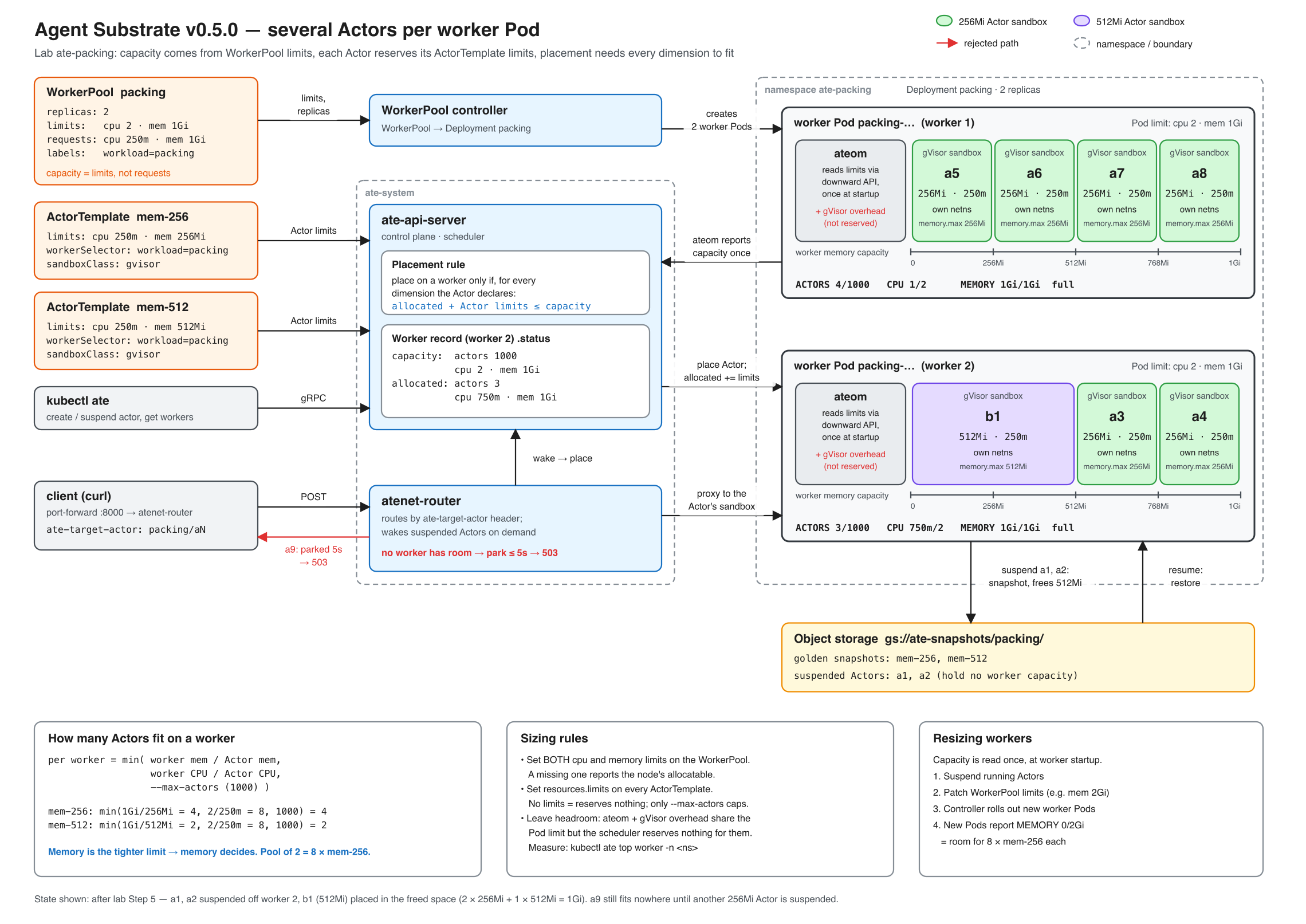
The Worker is, as mentioned, a k8s Pod. It's where the Actor runs along with the configuration for how the sandbox will run. For example, if you use gVisor, the Worker will contain ateom, which is the execution runner (think of it as the runtime). Each sandbox inside the Worker runs the Actor (Agent).
In the sections to come, you will learn how to configure resources on Workers and run the Actors within said Workers to ensure that you can have multiple Actors running in one Worker.
Configuring Workers With Proper Resources
By default, a Worker's default capacity for Actor count is 1,000. That's doable, of course, as long as you have enough memory/CPU allocated to the Worker. For example, to actually run 1,000 Actors, you would need to calculate whether or not you need all Actors to be active at the same time (concurrency) or rely on multiplexing (Substrate's snapshot/warm state workflow)
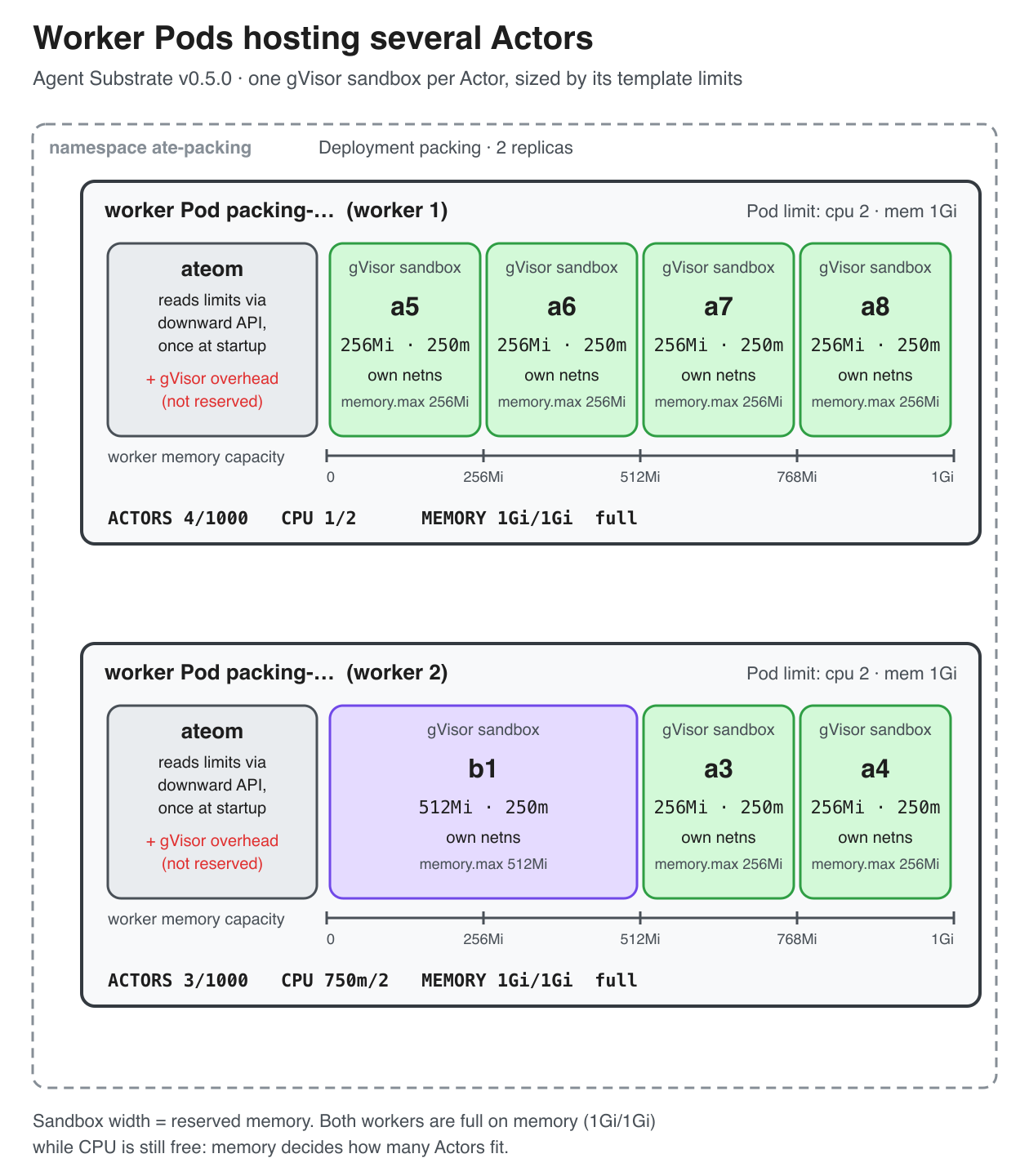
It also depends on whether or not you choose to go with hardware-level isolation (microVM) or software-level isolation (gVisor). That math comes out to something like:
gVisor == 256GiB of memory and 100 vCPUs.
microVM == 2 TB memory and 1,000 vCPUs.
Two numbers ultimately decide how many Actors fit on a Worker:
- The Workers capacity (hardware resources)
- The Actors size (you'll see that via the
resources.limitson theActorTemplate.
Let's get hands-on.
- Port-forward locally to your atenet-router so you can reach it programmatically.
kubectl port-forward -n ate-system svc/atenet-router 8000:80- Re-use the images that were used to build out the
WorkerPoolduring installation of Substrate. You'll also see theCOUNTER_IMAGE, which is the image used to deploy the counter demo. This will be used in the next section when you deploy Actors.
export WORKER_IMAGE=$(kubectl get workerpool counter -n ate-demo-counter -o jsonpath='{.spec.workerImage}')
export COUNTER_IMAGE=$(kubectl ate get actor-template counter -a ate-demo-counter -o json \
  | jq -r '.containers[0].image')

echo "${WORKER_IMAGE}"
echo "${COUNTER_IMAGE}"- Create the new
WorkerPoolwith specific resource limits and requests.
kubectl apply -f - <<EOF
apiVersion: v1
kind: Namespace
metadata:
  name: ate-packing
---
apiVersion: ate.dev/v1alpha1
kind: WorkerPool
metadata:
  name: packing
  namespace: ate-packing
  labels:
    workload: packing
spec:
  replicas: 1
  workerImage: ${WORKER_IMAGE}
  sandboxClasses:
  - name: gvisor
  template:
    resources:
      limits:
        cpu: "10"
        memory: 10Gi
      requests:
        cpu: 1000m
        memory: 6Gi
EOFlimits. The requests only tell the k8s Scheduler what to reserve on the node.- Ensure the Workers are running.
kubectl ate get workers -n ate-packingYou'll see an output similar to the following, which showcases your original WorkerPool when you install Substrate and the new WorkerPool, which contains 1 replica (Worker/Pod). The reason why is to see that more than one Actor can, in fact, be scheduled on one Worker.

With the Workers up, let's start deploying Actors.
Resizing Workers
Capacity is read once when a Worker starts. To change it, you'll need to change the WorkerPool limits. The Controller then rolls out a new Worker with new capacity.
for a in $(kubectl ate get actors -a packing -o json | jq -r \
    '.actors[] | select(.status.state == "ACTOR_STATE_RUNNING") | .metadata.name'); do
  kubectl ate suspend actor "$a" -a packing
done

kubectl patch workerpool packing -n ate-packing --type merge \
  -p '{"spec":{"template":{"resources":{"limits":{"cpu":"2","memory":"2Gi"},"requests":{"cpu":"250m","memory":"2Gi"}}}}}'
kubectl rollout status deployment/packing -n ate-packing
kubectl ate get workers -n ate-packing
Running Multiple Actors In One Worker
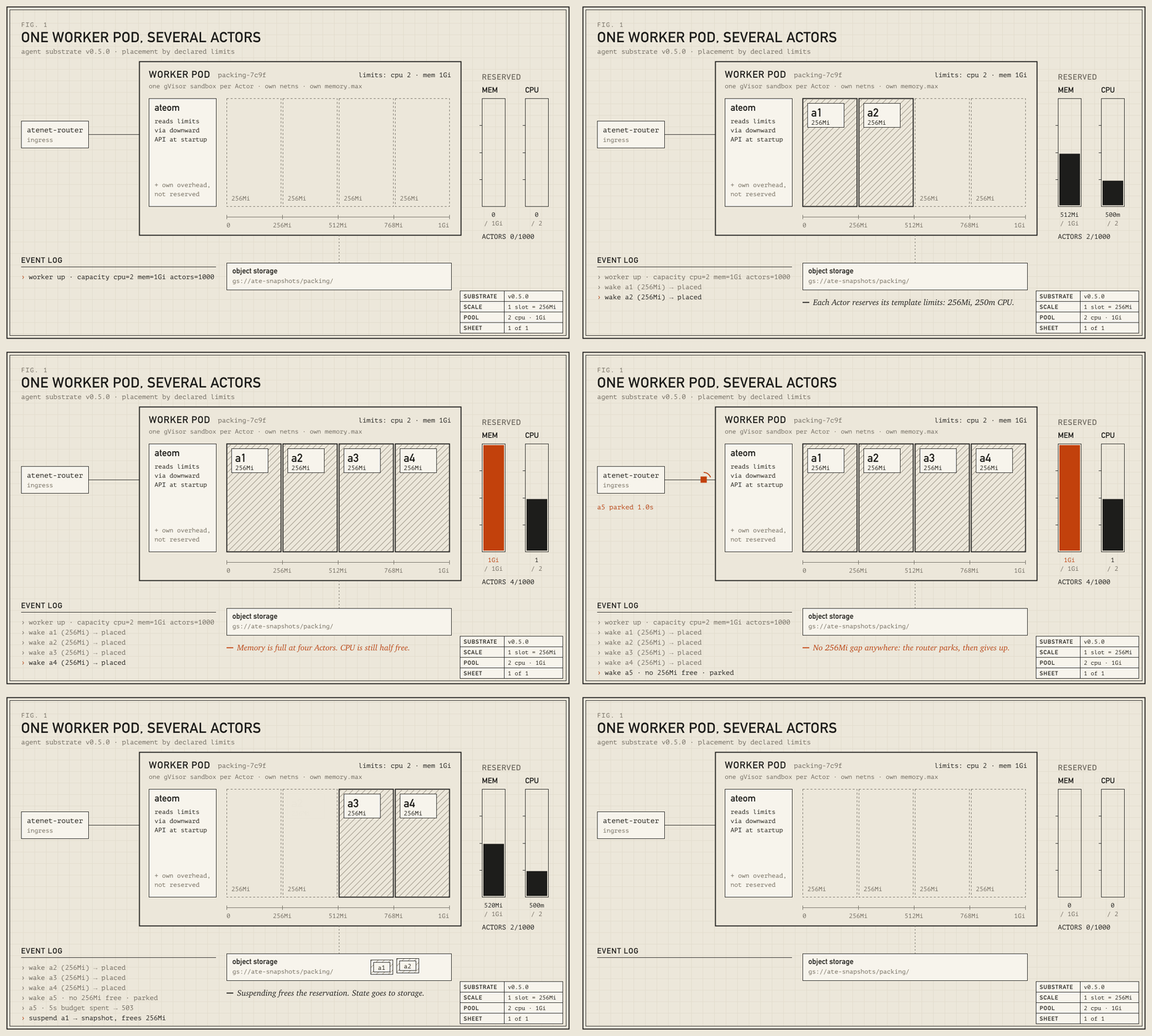
The goal of this blog post is to test and ensure that you can run more than one Actor within a Worker. This is important as the industry continues down the path of running agentic workloads in an efficient and performant fashion. Originally, many of the agentic runtimes would be a mapping of "one Agent to one Pod", but that doesn't scale well considering the amount of Agents that run in production in comparison to a standard workload.
- Create the Atespace (where Actors live; it's like a Namespace).
kubectl ate create atespace packing- Ensure that your
WorkerPoolis running the gVisor sandbox class.
kubectl get workerpool packing -n ate-packing -o jsonpath='{.status.sandboxClasses}' | jq- Create the
ActorTemplate. To ensure that the Actors land on the correctWorkerPool, you'll see thatworkerSelector.matchLabels.workloadis used as the parameter andpackingas the value.
for size in 256 512; do
  kubectl ate create actor-template -f - <<EOF
metadata:
  atespace: packing
  name: mem-${size}
workerSelector:
  matchLabels:
    workload: packing
containers:
- name: counter
  image: ${COUNTER_IMAGE}
  command:
  - /ko-app/counter
  wakeupProbe:
    httpGet:
      path: /readyz
      port: 80
resources:
  limits:
  - name: cpu
    quantity: 250m
  - name: memory
    quantity: ${size}Mi
snapshotConfig:
  preferredFidelity: SNAPSHOT_FIDELITY_MEMORY
  storageLocation: gs://ate-snapshots/packing/
sandboxConfig:
  sandboxClass: gvisor
  configName: gvisor-default
EOF
done
You'll see an output similar to the one below showing that the templates have been created.

- Start and connect to the Actors so they get scheduled. You can also send a
curlto interact with them.
for i in $(seq 1 9); do
  kubectl ate create actor "a$i" -a packing --template mem-256
done

for i in $(seq 1 8); do
  curl -s -X POST -H "ate-target-actor: packing/a$i" http://localhost:8000
done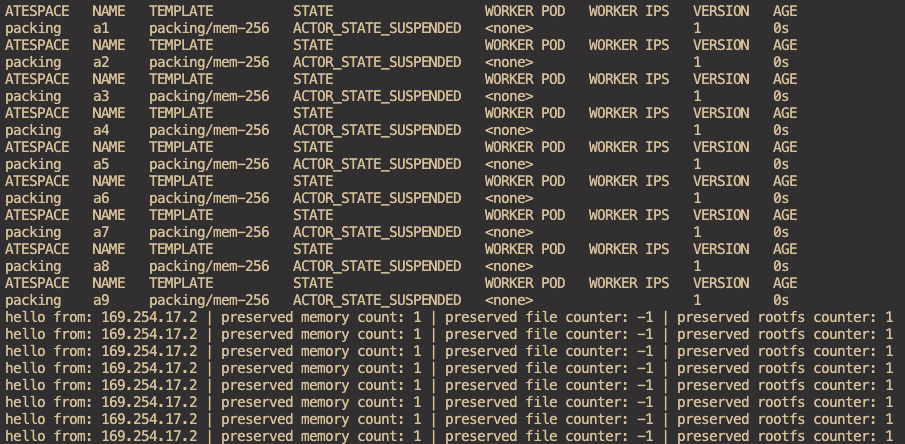
- You can also see the Actors within the "packing"
atespace.
kubectl ate get actors -a packing

Comments ()